



I’ve been wearing the Amazfit Bip 6 on my left wrist since August 2025. That’s three months of morning runs, gym sessions, trail hikes, late-night sleep tracking, and everything in between.
At $79, it’s the watch I keep recommending to friends who ask “what smartwatch should I actually buy?” — not because it’s perfect, but because nothing else at this price comes close.
Here’s everything I’ve learned, including 9 hidden features most people never find.
Quick Verdict
| What I love | What I don’t |
|---|---|
| 1.97″ AMOLED that embarrasses watches 3x the price | No always-on display without battery hit |
| Real GPS with offline maps — at $79 | Strap feels cheap after a few months |
| 5–6 days battery with heavy use | Zepp Flow AI needs Wi-Fi to shine |
| Keeps getting better via updates | No NFC payment in this model |
| Offline music + Bluetooth headphones | Limited third-party app ecosystem |
Bottom line: 90% of what the Amazfit Balance 2 does, at 35% of the price. For most people, that math is obvious.

Who Should Buy the Bip 6?
Before the full breakdown — this watch is best for:
- Runners and walkers who want GPS route tracking without paying Garmin prices
- Android users (works great) or iOS users who don’t need deep Apple Health integration
- First-time smartwatch buyers who want real features, not a glorified step counter
- People upgrading from fitness bands — this is a big jump up in usefulness
If you’re a serious triathlete or you need precise barometric altitude for mountaineering, look at the T-Rex 3 Pro instead. This review is for everyone else.
The Display: Genuinely the Best at This Price
The 1.97-inch AMOLED hits 2,000 nits peak brightness. I’ve tested this on morning runs in direct Saudi summer sun — it’s readable. No squinting.
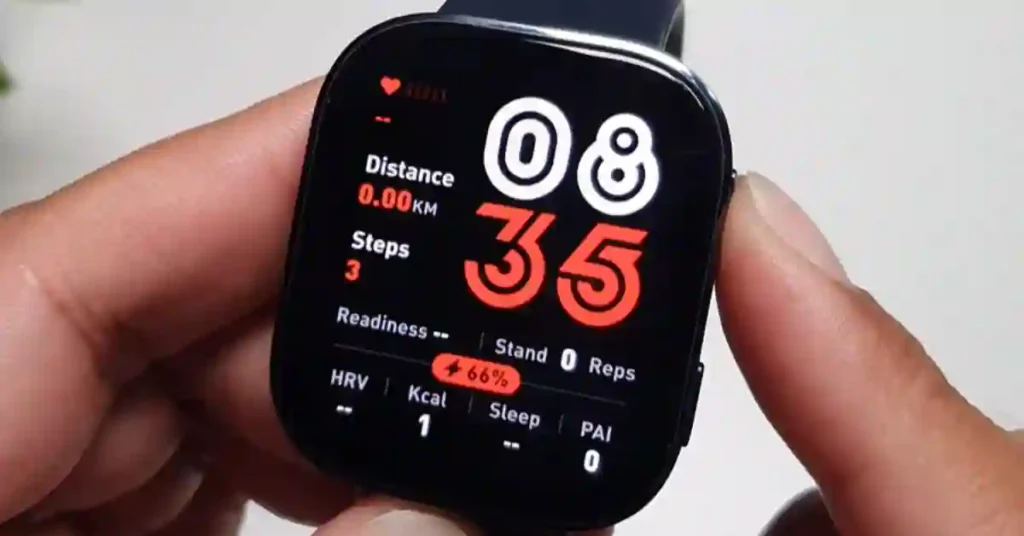
For comparison: the Amazfit Balance 2 has the same peak brightness at nearly 3x the price. The Garmin Forerunner 165 has a worse display and costs $100 more.
Colors are punchy, blacks are true black (it’s AMOLED, so pixels turn off). Watch faces look genuinely sharp — not like a cheap LCD trying to imitate a smartphone.
One thing I changed immediately: I downloaded a minimal watch face from the Zepp app that shows heart rate, steps, battery, and weather at once. The default watch face wastes the screen. Spend 2 minutes in the Zepp app and it looks completely different.
Auto-brightness works well. I leave it on and forget about it.
GPS Accuracy: Better Than It Has Any Right to Be
The Bip 6 has 5-system GPS (GPS, GLONASS, Galileo, BeiDou, QZSS). For a $79 watch, this is not normal.
What this means in practice: On my usual 8km morning run, the route trace in the Zepp app looks clean. No dramatic shortcutting through buildings, no phantom spikes.
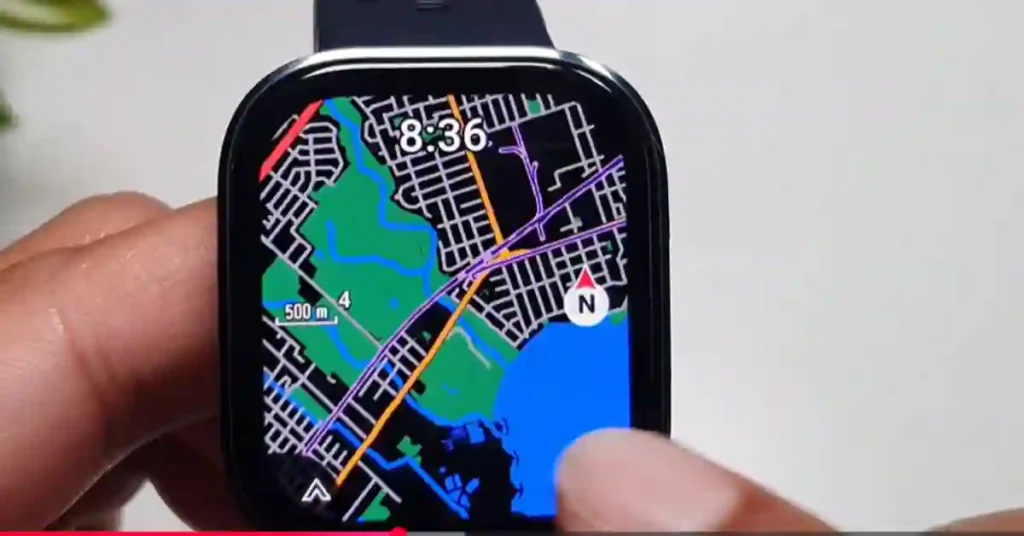
I compared it side-by-side with my Garmin Forerunner 55 on the same route for two weeks. The Bip 6 was within 50–80 meters of Garmin’s trace on open roads. In a tight urban area with tall buildings, Garmin pulled ahead — but the gap is much smaller than you’d expect.
The offline maps feature is the real surprise. You can load GPX files from Komoot, Strava, or any route planning tool directly via the Zepp app. The watch displays your route as a map on-screen while you run or hike. At $79. Let that land.
How to load a GPX route:
- Export your route from Komoot/Strava/AllTrails as a .GPX file
- Open Zepp app → Profile → your watch → Route Import
- Select the file — it syncs to the watch in under a minute
- Start your workout, select Navigation, choose your route
I used this on a trail run last month and went completely phone-free for navigation. This feature alone makes the Bip 6 worth the price for anyone who runs off-road.
Battery Life: The Honest Numbers
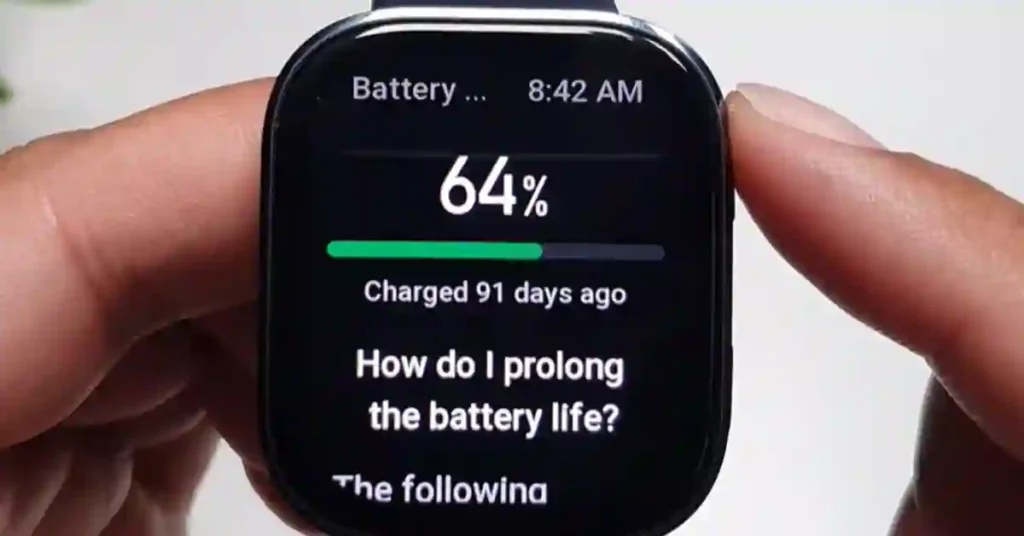
Amazfit claims up to 14 days. Here’s what I actually got:
| Usage pattern | My result |
|---|---|
| Light use (notifications only, no workouts) | 10–11 days |
| Normal use (1 workout/day, 24/7 health tracking) | 6–7 days |
| Heavy use (GPS on daily, always-on display, Zepp Flow) | 4–5 days |
For context: I charge it on Sunday nights. It almost always makes the full week. Coming from phones that need daily charging, wearing a watch for a week without thinking about the charger feels like a genuine lifestyle upgrade.
Charging: Magnetic USB-C puck. Same cable as your phone. It goes from 0–100% in about 90 minutes.
Battery saver tip that actually works: Turn off the always-on display (Settings → Display → Always On Display → Off). You get 2–3 extra days immediately. The wrist-raise activation is fast enough that you won’t miss it.
Health Tracking: What’s Accurate, What’s Not
Heart rate: Reliable for steady-state cardio. Compared against a chest strap on 20+ runs — the Bip 6 averaged within 3–4 BPM at moderate intensity. At very high intensity (sprints, heavy lifting), it lagged by 8–12 BPM, which is typical for optical wrist sensors at this price.
Sleep tracking: One of the better implementations I’ve tested at this price. It correctly identified my sleep/wake times within 10 minutes on most nights. REM detection is less reliable — I’d take those numbers as directional, not precise.
Blood oxygen (SpO2): Spot readings are fast (under 10 seconds). I used this during a hiking trip at 2,400m altitude — the readings felt plausible and consistent. Don’t use it for medical decisions, but as a wellness indicator it’s fine.
Stress tracking: Honestly skip this one. The algorithm is inconsistent and seems to trigger on exercise rather than actual stress. Turn it off if you find it annoying (Settings → Health Monitoring → Stress → Off saves battery too).
The 9 Hidden Features Most People Never Find
This is where the Bip 6 earns its money back, and most reviews miss all of it.
1. Wrist Lock (Your Privacy Guard)
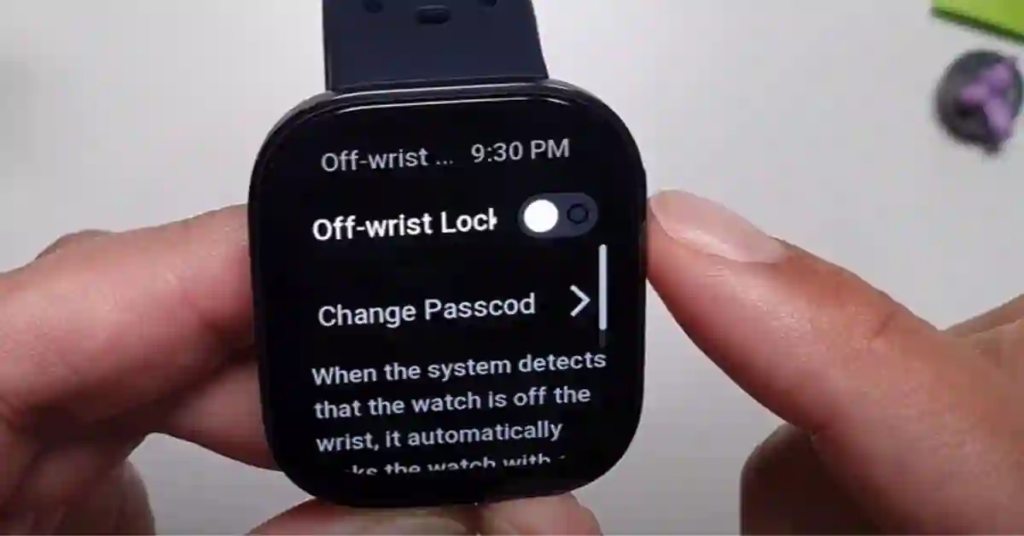
If you hand your watch to someone or leave it on your desk, your messages and health data are exposed. Wrist Lock solves this.
How to enable: Settings → Preferences → Wrist Lock → set a passcode
The watch automatically locks when you take it off your wrist. Nobody reads your WhatsApp messages from your watch without your code.
2. Offline Voice Control (Works Without Your Phone)
You can control the Bip 6 with your voice when your phone isn’t nearby and there’s no Wi-Fi. I use this mid-run to start workouts or mute notifications without touching the screen.
Setup: Settings → Voice Assistant → Offline Voice Control
Choose your wake mode — I use “respond within 5 seconds after screen lights up.” It balances battery and responsiveness well.
What you can control by voice: Start/pause workouts, open apps, set alarms and timers, turn on DND mode, adjust brightness. It genuinely works and feels like a feature from a watch twice the price.
3. Multiple Simultaneous Timers
Open the Timer app, tap “+” to add a new timer. You can run several at once, each independently controlled. I use this for interval training and cooking at the same time. Small thing, surprisingly useful.
4. Customizable Workout Data Screens
Most people use the default workout view. Don’t.
During workout setup, tap More → Data Pages. You can choose exactly what appears on each screen: pace, cadence, heart rate zone, average pace, elevation, power, training effect. Add or remove screens.
For runs, I show pace + HR on screen 1, distance + cadence on screen 2, map on screen 3. Everything I need, nothing I don’t.
5. Screen Stay-On for Cooking or Navigation
Swipe down from the top → tap the screen icon → select duration (up to 20 minutes). The display stays on without timing out.
Useful when: following a recipe, watching your route map on a hike, or monitoring heart rate during a workout.
Warning: kills battery fast. I only enable it when I specifically need it.
6. Interval Training Setup
Go to Workouts → your activity → Settings → Interval. Set:
- Work intervals (distance or time)
- Rest intervals
- Number of rounds
- Cool-down period
The watch guides you through each interval with vibrations. For anyone doing speed work, this turns the Bip 6 into a proper training tool.
7. Sleep Schedule and Smart Alarm
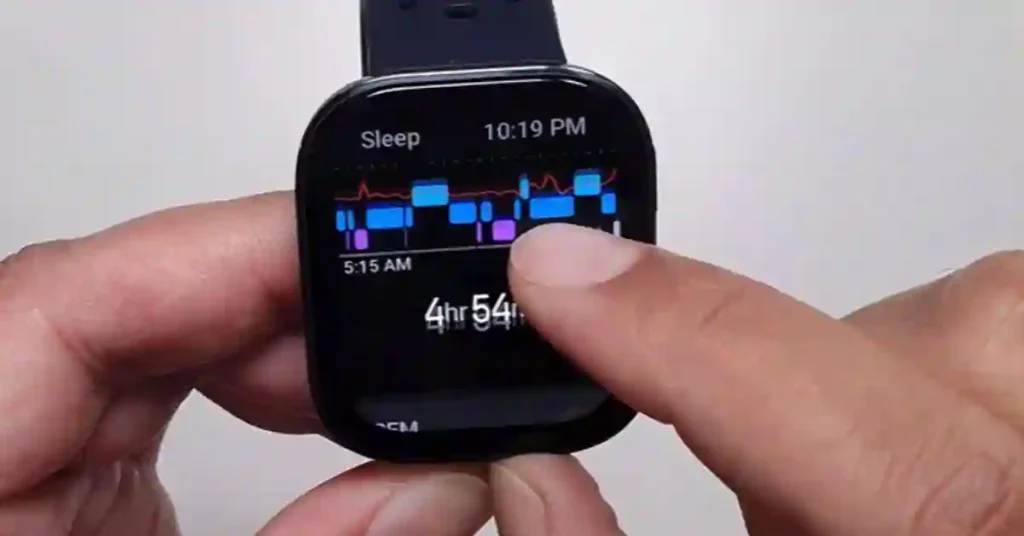
Sleep app → Settings → Sleep Schedule. Set your target bedtime and wake-up time. The watch vibrates you awake — silent alarm that won’t wake your partner.
The sleep schedule reminder nudges you to wind down 30 minutes before your set bedtime. Genuinely helped me fix an inconsistent sleep routine.
8. The Compass (Seriously Useful on Trails)
Open the Compass app, calibrate it (rotate your wrist in a figure-8 twice), then tap the lock icon to set your bearing.
The watch shows you how many degrees off-course you are from your locked direction. On a trail where the path isn’t obvious, this is genuinely useful. I’ve used it twice when I took a wrong fork — got me back on track in under a minute.
9. App View Customization
Settings → Preferences → App View → Grid View
Switches the app drawer from a scrolling list to an icon grid, like a phone home screen. If you have lots of apps installed from the Zepp App Store, this makes navigation much faster.
Software Updates: Why This Matters More Than You Think
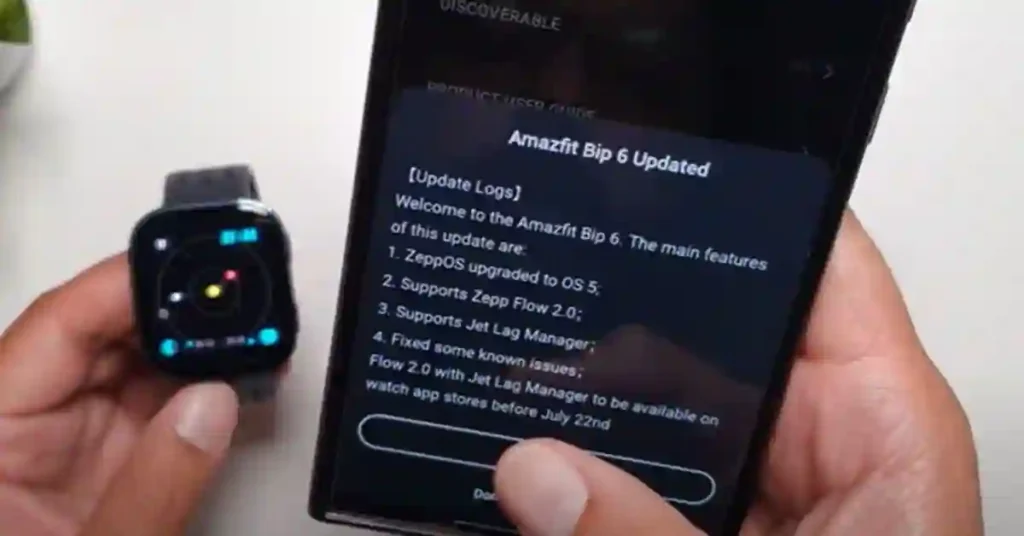
Most budget watches receive one software update, maybe two, then nothing. The Bip 6 has received meaningful updates every 6–8 weeks.
What Zepp OS 5 added (rolled out August 2025):
- Jet lag manager — times light exposure and sleep to help reset your body clock during travel. I used this on a flight from Dubai to London. It actually helped.
- Advanced running metrics — vertical oscillation and ground contact time, previously only on the T-Rex series
- Screenshot function — press both buttons simultaneously to capture the watch screen
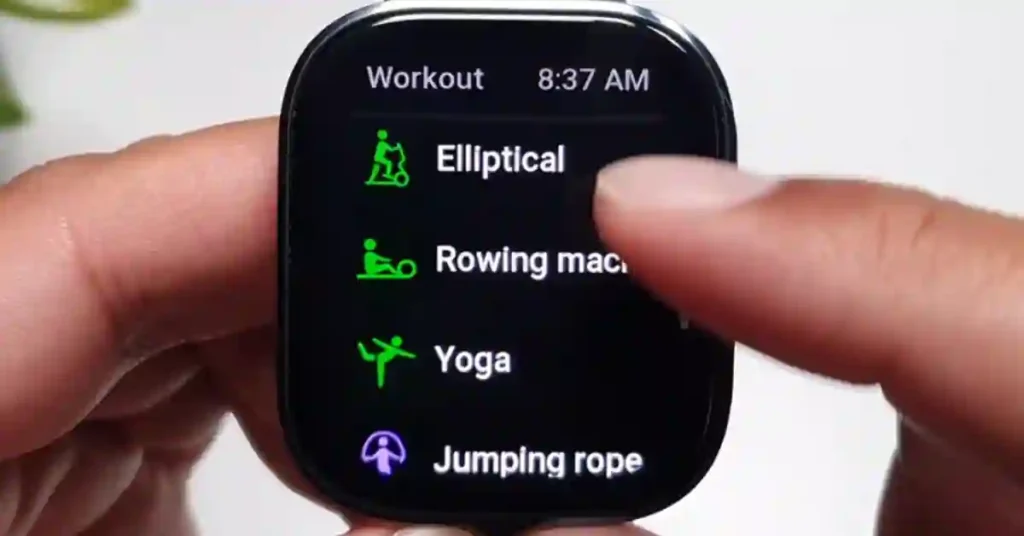
- Workout control improvements — wrist-raise to unlock mid-workout, jump rope mode reminders
This pattern of updates means the watch you buy today is better in 6 months. That’s rare and worth paying for.
How It Compares to Competitors
Bip 6 vs Fitbit Inspire 3 ($99)
The Fitbit has a better app ecosystem and Fitbit Premium integration. The Bip 6 wins on display (much larger, much brighter), GPS (Fitbit Inspire 3 has no built-in GPS), and battery life. If you don’t care about the Fitbit app, the Bip 6 is clearly better.
Bip 6 vs Samsung Galaxy Fit 3 ($49)
The Galaxy Fit 3 is cheaper, but it has no GPS and a much smaller screen. If GPS matters at all, the Bip 6 is worth the extra $30.
Bip 6 vs Amazfit Active 2 ($129)
This is the comparison most people ask about. I’ve tested both extensively. The Active 2 has better build quality (stainless steel bezel), more accurate health sensors, and a slightly larger screen.
It costs $50 more. If your budget is flexible, the Active 2 is the better watch. If $79 is your ceiling, the Bip 6 is excellent.
→ Full comparison here: Amazfit Bip 6 vs Active 2: Which Should You Buy?
Bip 6 vs Garmin Forerunner 55 ($199)
The Garmin wins on GPS accuracy (noticeably better in dense urban areas), training load analysis, and Garmin’s ecosystem. But it costs $120 more and has a smaller, lower-resolution display with shorter battery life. For casual runners, the Bip 6 is 70% of the Garmin at 40% of the price.
What I’d Change
The strap: After 3 months, the stock silicone strap started showing wear at the buckle holes. It’s a standard 20mm band, so replacement straps are everywhere for under $10. Not a dealbreaker, but worth knowing.
Zepp Flow with no Wi-Fi: The AI assistant is impressive when connected. Without Wi-Fi or a phone connection, it drops to basic offline commands. For most daily use this is fine, but don’t expect Siri-level responses in the wilderness.
The Zepp app: Functional but not elegant. Navigation is inconsistent across Android and iOS. It works, but compared to Garmin Connect or the Apple Health app, it feels unfinished. Zepp is actively improving it — just being honest about where it stands now.
Final Verdict: Is the Bip 6 Worth $79?
Yes — with no hesitation, for the right person.
Three months in, I still reach for this watch every morning. The display is excellent, the GPS is reliable, the battery lasts the week, and the software keeps improving. The hidden features (offline voice control, interval training, GPS route navigation) add real value that you’ll actually use.
It’s not a Garmin. It’s not an Apple Watch. But for $79, it does 90% of what those watches do for most people’s daily needs.
Buy the Bip 6 if: You want GPS, a great display, and a long battery without spending $200+
Consider the Active 2 instead if: You care about build quality and slightly better sensors — and $50 more is fine
Skip it if: You’re deep in the Apple ecosystem and want seamless iPhone integration
→ Check current Bip 6 price on Amazon
Frequently Asked Questions
Does the Amazfit Bip 6 work with iPhone?
Yes. It pairs via Bluetooth and the Zepp app, available on iOS. You get notifications, health sync, and app features. It does not integrate with Apple Health natively, and Siri integration is not available.
How waterproof is the Bip 6?
5 ATM — safe for swimming, showering, and rain. Not for diving or high-pressure water sports.
Can I reply to messages from the Bip 6?
Yes, using Zepp Flow (requires Wi-Fi or phone connection) or pre-set quick replies. You cannot type replies — only voice-to-text or pre-written responses.
Does the Bip 6 have NFC payments?
No. If contactless payment is important to you, look at the Amazfit Balance 2 or T-Rex 3 Pro.
How often does Amazfit update the Bip 6?
As of June 2026, major updates have arrived roughly every 6–8 weeks since launch. Zepp OS has been very active with this model.
This post contains affiliate links. If you buy through our links, we may earn a small commission at no extra cost to you. We only recommend products we’ve personally tested.
