


Want to plan routes or share your favorite trail with a friend? If you use an Amazfit T-Rex 3 Pro, you can both export and import GPX files with the Zepp App, which makes route planning and sharing simple.
This guide walks you through the exact steps, from exporting a past workout to loading a new route file onto your watch and using it during a workout.
It’s straightforward, fast, and works for any GPS-based activity recorded on your watch.
Looking for the maps to overlay your route? Merely syncing a path isn’t enough; you need the correct background tiles to see where you are going. Check out our exhaustive walkthrough on How to Download and Use Offline Topographic Maps on Amazfit T-Rex 3 to load full regional map files.
Exporting GPX Files from Amazfit T-Rex 3 Pro
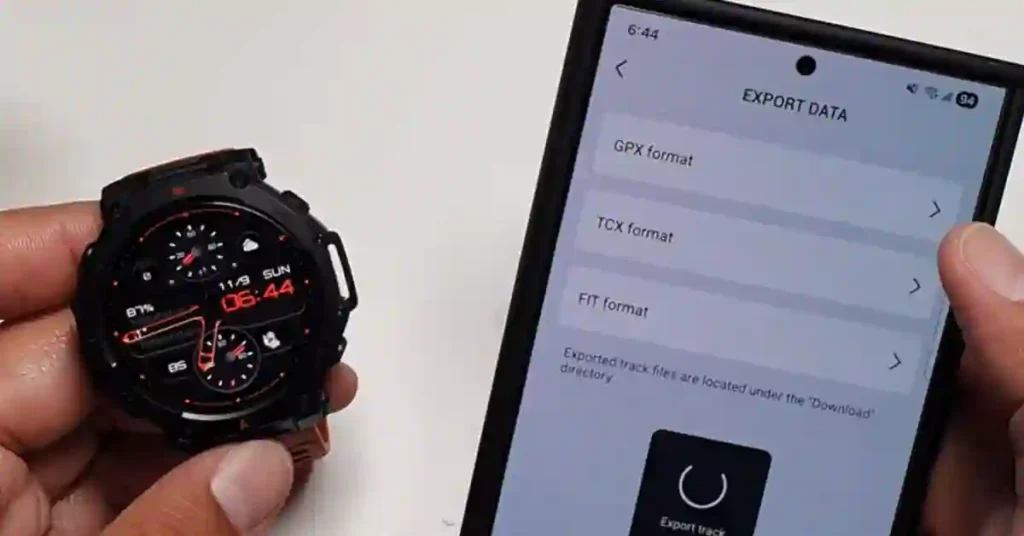
Exporting a GPX file is perfect when you want to back up your GPS track, move your track data to another app, or send a route to a friend.
The Zepp app lets you export any GPS-recorded workout from your Workout history, and you can choose from a few formats.
You’ll do everything on your phone, then the file saves locally in your downloads or a folder you choose.
The steps below use the official Zepp App from Zepp Health. This process works for any workout recorded with GPS, like running, walking, or hiking.
Accessing Your Workout History
- Open the Zepp App on your Smartphone (Android/iOS).
- Tap on “Workouts.”
- Select “Workout history.“
You’ll see a list of your past workouts. Pick one that shows a mapped route.
Selecting and Exporting the File
Find the Workout that includes the route you want to share or save. You’ll see the activity map and metrics. Then:
- Tap the three-dot menu on that Workout.
- Choose “Export data.“
- Pick GPX from the options: GPX, TCX file, or FIT format.
You’ll see a confirmation that it’s been exported successfully, and the GPX file will be saved to your phone. This works for any recorded route or activity from your Amazfit T-Rex 3 Pro.
Tip: If you’re not sure which format to use, GPX is the most common for sharing and route import. TCX files and FIT are also widely used by training tools and workout analysis platforms.
What Happens Next
You can now use that exported GPX file as a demo to import back into the Zepp app. Or share it with a friend, archive it, or use it on other route planning tools.
For comparison, GPX focuses on points and paths, while the KML format is standard for viewing routes in map viewers. For your T-Rex 3 Pro, stick with GPX.
Importing GPX Files to Amazfit T-Rex 3 Pro
There are many places online where you can get ready-made GPS track files for trails and routes.
Once you’ve downloaded a GPX file to your mobile phone, loading it into the Zepp app is quick.
You’ll then send it to your watch with one tap. The whole route import process is an easy process, and for this demo, we’ll use the file we just exported.
Locating the GPX File
- Open your phone’s file manager or file browser.
- Find the GPX file you downloaded or exported.
Tap the file. Your phone will show apps that can open it. You might see options like Samsung Health or the Zepp App.
Choose the Zepp App. This opens a route preview inside Zepp.
Loading into Zepp App
Once the route opens in the Zepp App, you’ll see a full preview with key details. Review what’s shown before saving:
- Distance details.
- Elevation profile.
- Graph preview showing climbs and descents.
You’ll also see the total descent and an elevation graph with a clear profile. Press “Save” to store the route in Zepp.
This keeps the route available for quick access later and displays all route data cleanly in one place.
Sending to Your Watch
After saving, tap “Send to device.” Then:
- Choose your connected watch, like the Amazfit T-Rex 3 Pro.
The app will transfer the route to your watch. If you’re still shopping for the device, here’s a quick link to the product page: See the Amazfit T-Rex 3 Pro on Amazon. Once the sync finishes, the route will appear in your watch’s route list.
Tips for Smooth Import
- Make sure your watch is paired in the Zepp app and connected during transfer.
- Keep Bluetooth on during the sync.
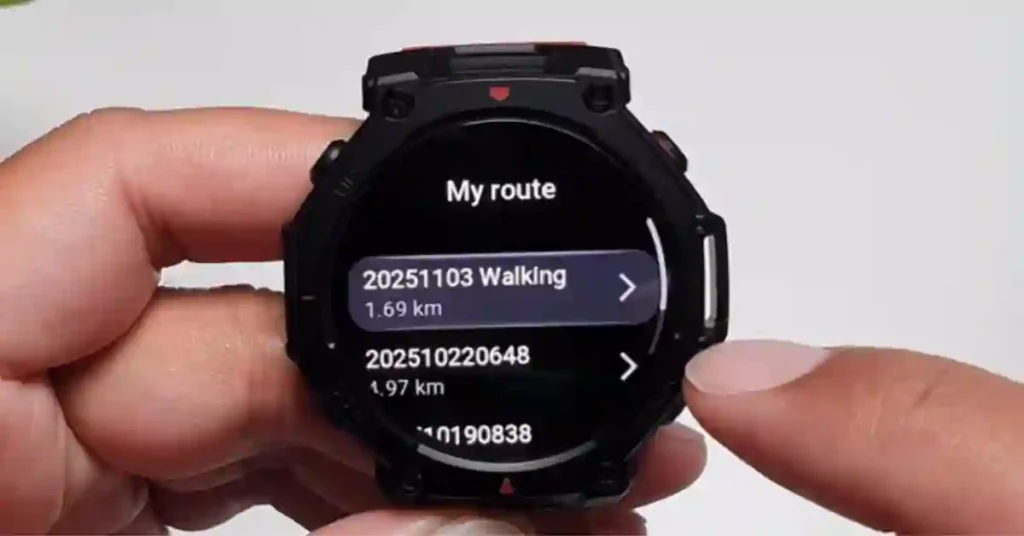
- If you don’t see the route immediately, give it a moment, then check again under My Routes.
Using Imported Routes on Your Amazfit T-Rex 3 Pro
Once a route is on your watch, you can use it in workout mode for hiking, Walking, or running.
The navigation function on the T-Rex 3 Pro allows you to preview the route, view elevation details, and set the direction before you start.
You’ll use it under Navigation and My Routes inside your workout settings.
Navigating to Workout Mode
- On the watch, go to Workout.
- Choose Outdoor running or Walking, depending on your plan.
- Tap Settings.
- Select Navigation, then My route.
Your imported route will be listed here.
Previewing and Starting the Route
Tap the route to open a full preview. You’ll see:
- Elevation and graphical info for the course.
- Slope details to get a feel for climbs and descents.
- The option to change the course direction if needed.
When you’re ready, choose to use the route. The watch will enable GPS, then you can start your Workout.
As you move, you can scroll to view the route map on the watch screen and follow your path in real time.
You can also start working on this route from the preview screen and jump right into your activity.
Pro tip: This setup is great for Hiking, Trail Running, and other Outdoor Sports when you want to follow a plan or revisit a favorite loop.
Workout in Action
During the Workout, swipe or scroll to the route page to view your progress along the track and stay on course.
Export Formats at a Glance
Here’s a quick look at common export types you’ll see when using the Zepp app. Use this as a reference anytime you’re moving track data between tools.
| Format | Best Use | Notes |
|---|---|---|
| GPX | Sharing routes, importing to watches or apps | Most common file type for route import |
| TCX | Structured workouts, analysis tools | Works well with most training and coaching software |
| FIT | Detailed device data and advanced metrics | Compact format that stores rich GPS and performance data |
Note: While KML format is popular for map viewers, the T-Rex 3 Pro uses the formats shown in the export menu.
Why GPX Matters for T-Rex 3 Pro Owners
The Amazfit T-Rex 3 Pro records GPS activities with All-systems GPS, so your GPX file adds accurate route points.
That makes it easy to revisit a route later, share a trail with friends, or plan a return outing using the same path.
Many platforms use GPX, such as Garmin devices, Komoot route planners, and Strava for activity sharing.
Even if you don’t use those services, knowing your route is saved in a standard format keeps your data flexible and future-proof.
By keeping your Watch & App workflow simple, you can plan, save, and run routes without fuss.
You don’t need to rely on offline maps for this process, since the watch handles the real-time Navigation for your loaded route.
If you do explore other tools later, you’ll have portable files ready to go.
Troubleshooting Common Hiccups
Most route transfers are smooth. If something seems off, try these quick checks.
- The route doesn’t appear on the watch: Confirm the watch is connected in Zepp, then open My Routes again.
- The GPX won’t open in Zepp: Make sure you tapped the file from your file manager, then chose the Zepp App when presented with app options.
- No GPS route found in export: Only workouts recorded with GPS will include a GPX file option in the Export data menu.
- Transfer stalls: Keep Bluetooth on, and keep the phone near the watch during the send to device step.
Complete Walkthrough: Export to Import in One Flow
If you want a repeatable routine, use the same steps every time. Here’s a quick, practical flow you can follow every week:
- Record a GPS workout on your Amazfit T-Rex 3 Pro.
- In the Zepp App, open Workout history and select that activity.
- Export as a GPX file and save it to your phone.
- Open your file manager, tap the GPX, and choose Zepp App to load it.
- Review the route preview, then tap Save.
- Tap send to device, pick your watch, and wait for sync.
- On the watch, open Workout, then Settings > Navigation > My route.
- Preview elevation and slope, pick the direction, and start the Workout.
This gives you a complete Amazfit route planning tutorial you can use anytime you want to reuse a path or plan for a new outing.
FAQs: GPX on T-Rex 3 Pro
Can I Import any GPX File?
If it’s a standard GPS track, you can open it from your phone’s file manager and load it with the Zepp App.
Where Do I See Routes on the Watch?
Go to Workout, pick an activity, tap Settings, then Navigation, and open My Routes.
Does This Give Turn-by-Turn Prompts?
The watch shows the route and your position on it. It supports Navigation along your path. If you want extra guidance, like turn prompts, check the preview features, and follow the on-screen route during the Workout.
Can I Reverse the Route?
Yes, you can change the direction of the course before starting.
What If I Go Off-Route?
You can reference the route screen to get back on track. Some models include a return option. Check your watch’s navigation function during the Workout if you want to retrace.
Conclusion
When you know how to add GPX Files on Amazfit T Rex 3 Pro, you unlock a simple way to plan, save, and repeat your favorite routes.
Export your GPX file from the Zepp App, import any route you like, send it to the device, then follow it from My Routes in workout mode.
This workflow fits hiking, walking, and running, and it keeps your adventures neat and repeatable.
Try it on your next outing, and keep your best trails close at hand with Amazfit T-Rex 3 Pro GPX tutorial steps you can trust.
For more Amazfit guides and in-depth insights, don’t miss:
- Amazfit T-Rex 3 Pro Review — A $400 Garmin Alternative with Built-In LED Flashlight
- Amazfit T-Rex 3 vs T-Rex 3 Pro: Full 2025 Review of GPS, Battery & Fitness Features
- Amazfit T-Rex 3 Pro Firmware Update — What’s New and Why it Matters
- 7 Best Amazfit Watches 2025: Buyer’s Guide & Reviews
- Amazfit T-Rex 3 Pro vs Balance 2: What’s the Real Difference in 2025?
- How to Add Offline Music to Amazfit T-Rex 3 Pro (Complete MP3 Upload Guide)
