


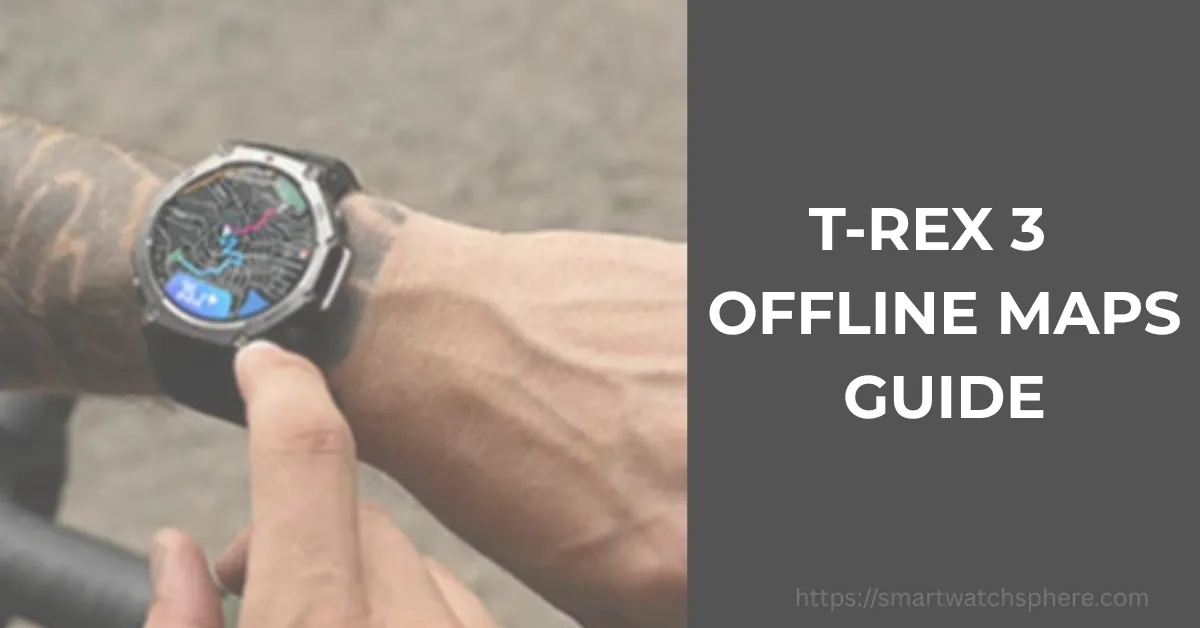
The Amazfit T-Rex 3 houses a strikingly crisp AMOLED display — and without offline maps loaded, you’re looking at a blank screen when you venture off-grid. This guide covers everything: map downloads, GPX import, and every error fix you’ll ever need.
The Amazfit T-Rex 3 runs Zepp OS 5 and carries a dedicated GPS chipset capable of multi-band positioning — but its real power only unlocks when you pre-load offline maps before heading out.
Whether you’re scouting singletrack trails in Colorado, navigating ridge walks in the Scottish Highlands, or urban cycling through Tokyo, this guide ensures your watch shows you where you are — even at zero signal.
Note for T-Rex 3 Pro Owners: Whether you are rocking the standard T-Rex 3, the larger 48mm T-Rex 3 Pro, or the compact 44mm variant, the Zepp OS 5 mapping architecture remains identical. You can follow these exact steps to load topographic files onto your specific device.
Prerequisites: What You Need Before Downloading Maps
Before you even open the Zepp app, make sure all three conditions below are met. Skipping any one of them is the single most common reason map downloads silently fail.
- Active Wi-Fi on your phone – Map files are large. The Zepp app cannot reliably push multi-hundred-megabyte tiles over cellular data — Wi-Fi is mandatory. Use a stable 2.4 GHz or 5 GHz network.
- 100 MB – 500 MB of free storage on the watch– The required space depends on your region. A city-level base map may need only 10–50 MB, while full topographic tiles for a mountain region can consume 100 MB–1 GB+. Check: Settings → Storage on the watch.
- Latest Zepp app installed on your phone– The offline map download UI is part of Zepp OS 5 firmware features. Older app versions may not display the topographic map option at all. Update via the App Store or Google Play before proceeding.
Step-by-Step: How to Download Topographic Maps on Amazfit T-Rex 3
Follow these steps in order. The Zepp app pushes the map file to the watch over Wi-Fi in the background — you do not need to keep the app open the entire time, but both devices should remain connected to the same network.
1. Open Zepp App and navigate to your device
Zepp App → Profile → My Devices → Amazfit T-Rex 3
Tap your watch tile on the “My Devices” screen. Ensure the watch shows as “Connected” (solid Bluetooth icon) before proceeding.
2. Open the App Store or Map Settings menu
Device Page → Scroll Down → App Store / Map Settings
On Zepp OS 5 this is labeled Map Settings. Scroll past the watch face and notification toggles — it sits near the bottom of the device page.
3. Select Offline Map and choose your map type
Map Settings → Offline Map
You will see two options: Base Map (streets, roads, and points of interest sourced from OpenStreetMap) and Topographic Map (contour lines, elevation bands, and terrain shading for mountain and trail use). Choose based on your activity.
4. Select your geographic region using the boundary box
Pinch / drag the map to define your region
Use the on-screen selection box to frame your target area — e.g., a specific trail corridor, national park, or district. A tighter selection means a smaller file and faster download. For a full hiking region like the Colorado Rockies, expect the tile set to be 200–600 MB.
5. Add to Download Queue and connect watch to Wi-Fi
Tap “Add to Download Queue” → Watch: Settings → Network & Wi-Fi
After queuing the download in the Zepp app, go to your T-Rex 3 and connect it to the same Wi-Fi network: Settings → Network & Wi-Fi → Select your network → Enter password. The watch will pull the map file directly. Monitor progress under Map Settings in the Zepp app.
Pro tip- Download maps at home before your trip — not in a parking lot trailhead. Large topographic tiles can take 10–30 minutes to transfer depending on your router speed and region size.
If you want to dive deeper into compass calibration, managing your saved Waypoints, and tracking custom POIs (Points of Interest) on the trail using the premium variant, don’t miss our specialized deep-dive: How to Use Navigation on Amazfit T-Rex 3 Pro: Offline Maps, Routes & POI Guide.
How to Use and Access Maps During a Workout
Activating Maps in Outdoor Modes
The map data screen is available inside any GPS-based activity on the T-Rex 3: Outdoor Running, Trail Running, Hiking, Cycling, and more. Here’s how to navigate to it:
- Start your activity (e.g., Trail Running) from the watch home screen.
- Wait for the GPS lock indicator to go solid — this is critical; the map will appear blank without a GPS fix.
- During the activity, swipe left or right on the data screen carousel until you see the map view.
- Use the physical up/down buttons on the side of the watch to zoom in or out of the map.
- Your current position is shown as a pulsing dot on the offline vector map.
Important- The map will only render the tile set corresponding to the geographic region you downloaded. If you move outside that boundary, the map tiles will appear blank — this is expected Behavior, not a bug.
Importing GPX Routes for Breadcrumb Navigation
The T-Rex 3 supports GPX route files for breadcrumb-style turn-by-turn navigation — a pre-planned path is overlaid as a colored line on the map. Here is how to import one:
- Export or download a .gpx file from a service like Komoot, Strava, AllTrails, or Garmin Connect.
- In the Zepp app, go to Profile → My Devices → T-Rex 3 → App Store → Route Import (or search “Route” in the app store).
- Select your
.gpxfile and tap Sync to Watch. - On the watch, before starting an activity, select Route to load your breadcrumb trail. The route will display as an overlay on the map during your workout.
Note- GPX breadcrumb navigation does not give voice turn-by-turn instructions. It shows your planned route as a line — you follow it visually on the watch screen.
If you are using the premium 44mm or 48mm Pro models, the layout inside the Zepp app can slightly differ during route uploads. For a seamless experience, follow our complete step-by-step guide on How to Add GPX Files on Amazfit T-Rex 3 Pro to ensure your routes sync on the first try.
Troubleshooting: How to Fix Zepp App Offline Map Download Errors
Problem 1: Map download stuck at 0% or keeps failing
Fix – This is almost always a connectivity issue between the watch and your network. The Zepp app cannot push large map data reliably via phone cellular — the watch itself must be on Wi-Fi .
Steps to resolve:
- On the T-Rex 3, go to
Settings → Network & Wi-Fiand connect to a 2.4 GHz band network (5 GHz has shorter range and the watch may drop out mid-transfer). - Keep the watch within 3 meters of your router during the download.
- In the Zepp app, force-quit and reopen it, then navigate back to Map Settings to resume the queue.
- If the issue persists, restart both the watch and the app, then retry the download from scratch.
Problem 2: Map looks completely blank or blurry on the watch
Fix– A blank map screen during an activity almost always means one of two things: the GPS has not yet achieved a full position lock, or you are physically outside the geographic boundary of the tiles you downloaded.
Steps to resolve:
- Step outside with an unobstructed sky view and wait 30–90 seconds for the GPS lock indicator to go solid before reading the map.
- Confirm you are within the region you selected when downloading. If you are at the map boundary edge, download a neighboring tile set.
- Use the physical side buttons to zoom in — at maximum zoom-out, vector map labels become sparse and the screen may appear empty.
- If tiles downloaded correctly but still appear as gray boxes, delete the map in Zepp and re-download with a slightly larger boundary selection.
Core Mapping Features Comparison (Quick Reference)
Use this table to decide which map type — or combination — fits your activity before downloading.
| Feature | Base Maps (OSM) | Topographic Maps | GPX Route Breadcrumbs |
|---|---|---|---|
| Best For | City streets, cycling paths, urban navigation | Hiking, mountain trails, ridge walks, backcountry | Strict pre-planned route navigation (any terrain) |
| What You See | Roads, POIs, district labels | Contour lines, elevation, terrain shading | A colored line overlaid on your base/topo map |
| Storage Size | Small (10–50 MB per region) | Large (100 MB – 1 GB+ per region) | Minimal (<1 MB per route) |
| Requires Internet Once Downloaded? | No | No | No |
| Data Source | OpenStreetMap (OSM) | OpenStreetMap + SRTM elevation data | User-provided .gpx file |
| GPS Required? | Yes | Yes | Yes |
| Turn-by-Turn Voice? | No | No | No (visual only) |
* OSM = OpenStreetMap, an open-source community mapping project. Amazfit does not use Google Maps or Apple Maps data.
If you are seeing unusually fast battery drops after long hikes, your firmware sensors may need recalibration.→ Read: Ultimate Amazfit T-Rex 3 Battery Drain Fix Guide
People Also Ask
Can I use Google Maps on Amazfit T-Rex3?
No. The Amazfit T-Rex 3 does not support Google Maps or any third-party mapping application. The watch uses OpenStreetMap (OSM) data rendered as native vector tiles through the Zepp OS 5 platform. This is actually an advantage for offline use: OSM-based maps are rendered entirely on-device, are regularly updated by a global community, and require no Google account or data-sharing agreements. You get full standalone GPS navigation without any dependency on Google services.
How much map storage does the T -Rex 3 have?
The Amazfit T-Rex 3 ships with 4 GB of onboard flash storage. After the Zepp OS 5 operating system partition, factory firmware, and pre-installed applications are accounted for, approximately 1.5 GB to 2 GB is typically available for user data — this shared pool covers offline maps, downloaded music, custom watch faces, and workout data logs. A city-level base map consumes 10–50 MB; full topographic tile sets for a mountain region like the Alps or Appalachians can use 100 MB to 1 GB+. Plan your downloads accordingly, especially if you also store music on the watch.
Do I need a phone to navigate with maps on the T-Rex 3?
Once maps are downloaded to the watch, you do not need your phone. The T-Rex 3 is a fully standalone GPS device. Navigation, position tracking, route overlay, and map rendering all happen on-watch using the internal GPS chipset and the locally stored tile files. Your phone is only required for the initial map download process via the Zepp app.
With GPS systems does the T-Rex 3 support?
The Amazfit T-Rex 3 supports five satellite systems: GPS (US), GLONASS (Russia), BeiDou (China), Galileo (EU), and QZSS (Japan). It also features L1+L5 dual-frequency GPS, which significantly improves position accuracy in challenging environments like deep canyons, dense forest canopy, and urban high-rise corridors.
Final Thoughts
The Amazfit T-Rex 3’s offline map system is one of its most underused features — largely because the setup process isn’t immediately obvious in the Zepp app UI. But once you have your regional maps loaded and a GPX route synced, the watch becomes a genuinely capable trail computer that rivals devices costing two to three times the price.
The key takeaways: always download on Wi-Fi, give your GPS time to lock before expecting the map to render, and lean on topographic tiles for anything off paved roads.
Which trails are you testing your T-Rex 3 on first? Drop the trail name in the comments below — readers have found some incredible regional map areas worth downloading.
Ready to hit the trail?
Share this guide with your hiking crew — and bookmark it for when that map download inevitably stalls at the trailhead parking lot.
