


Want to get more out of your rugged smartwatch when you head outside? The Amazfit T-Rex 3 Pro can guide you with on-wrist maps, searchable points of interest, and quick roundtrip routes you can follow without touching your phone.
This guide shows you exactly how to set it up, how the core navigation tools work on the watch, and what to expect on the display once your GPS locks in.
Also, we cover how to Use Navigation Features on Amazfit T Rex 3 Pro, but the goal is simple: help you get from your starting point to your destination with confidence.
Before you dive in, you might want to check out my complete breakdown of all its strengths, weaknesses, and real-world outdoor performance: Amazfit T-Rex 3 Pro Review
Preparing Maps on Your Amazfit T-Rex 3 Pro
Before any hike, ride, or run, download maps for the areas you plan to explore. This gives you offline access when your smartphone has no signal, and it unlocks the most impressive on-watch feature set.
Ready to get started? See Amazfit T-Rex 3 Pro on Amazon
Downloading Maps via the Zepp App
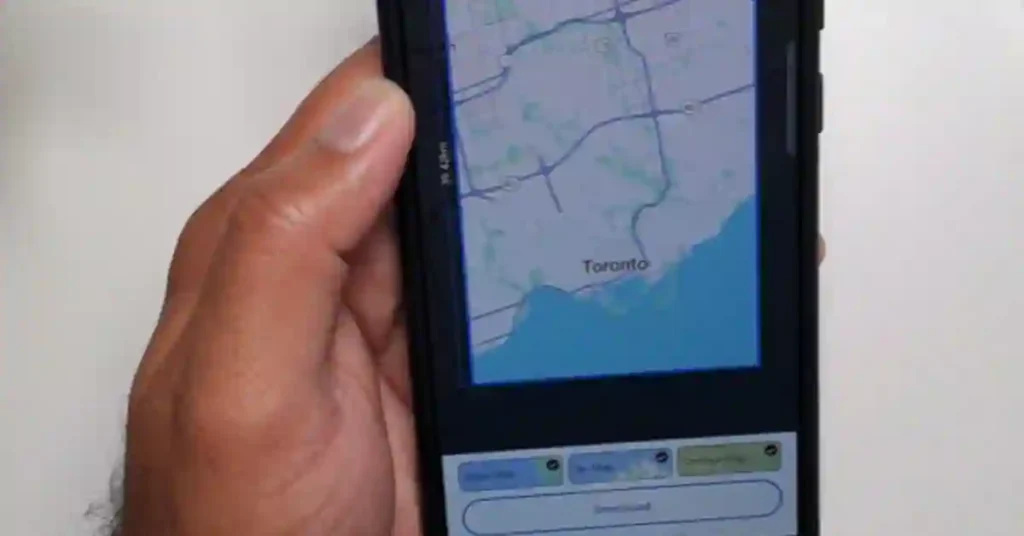
You need the Zepp app to load maps onto the watch. The sync happens behind the scenes, so the files move over without extra steps.
- Open the Zepp app on your phone.
- Go to Device, then tap Map Management.
- Choose the area you want to download.
- Pick your map type: base map, ski map, or contour map.
- Tap to download and wait while it transfers to the Amazfit.
Tip: Select areas based on your planned trips to avoid storage issues. If you often train in the same neighborhoods or parks, grab those first. The maps are also quick to update when you plan something new.
Why Download Maps First?
This simple prep lets the Amazfit T-Rex 3 Pro work without your phone. Benefits include:
- Offline maps for outdoor runs and rides
- On-wrist searches for nearby places
- Cleaner GPS tracking and faster route starts
- Turn-by-turn prompts right on the watch display
Accessing and Exploring Maps on the Watch
The on-watch interface is simple to use outdoors. Once your GPS connects, you can scroll, zoom, and call up categories near you.
The functionality is designed to work with gloves or sweaty hands, which helps when the terrain gets rough.
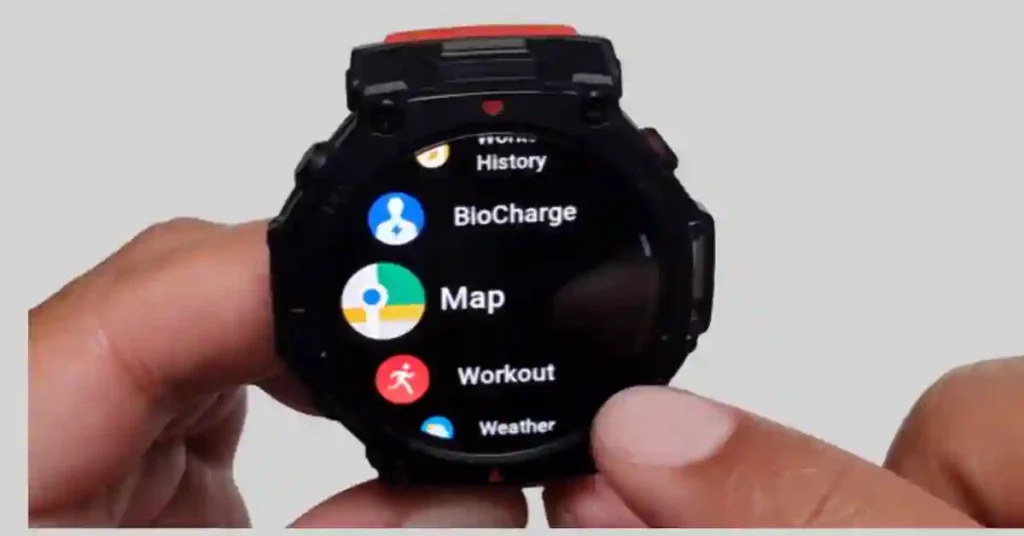
Opening the Map App and Connecting GPS
- On the watch, go to Apps.
- Select Map.
- Wait for the GPS to connect.
Give it a moment, especially if you are near tall buildings or trees. A solid lock supports a more accurate GPS while you move.
Basic Map Navigation
- Scroll to explore different areas around your current heading.
- Zoom in or out using the side buttons for more detail.
- Practice at home or on a quiet street so you know the controls.
Bold tip: long mapping sessions can impact battery life. Keep an eye on brightness and GPS mode to balance accuracy and power use.
Discovering Nearby Points of Interest
Here’s the part that feels almost like magic on the Amazfit. You can pull up nearby spots and pick where to go with a few taps.
If you like spontaneous coffee stops mid-run, or you need a restroom on a long trail, this is for you.
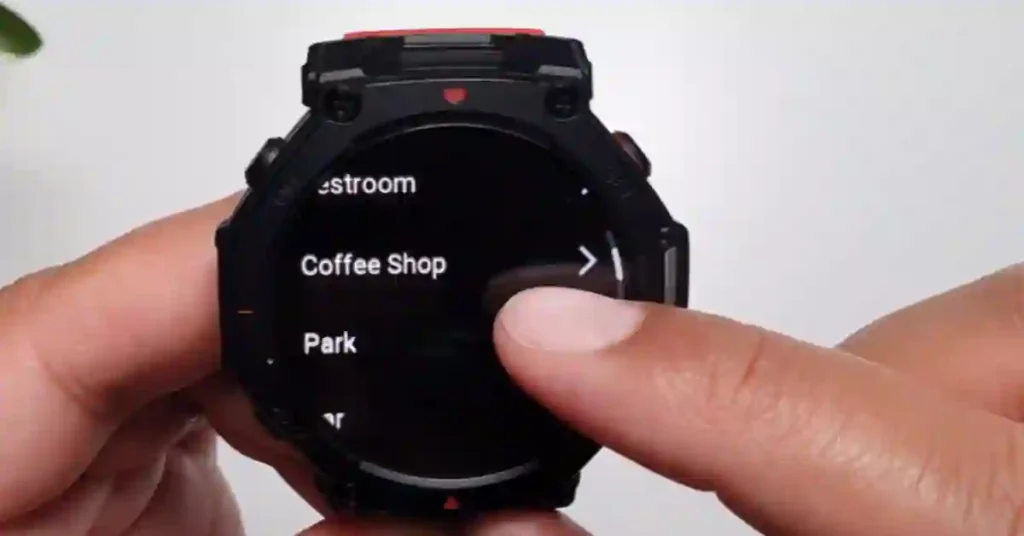
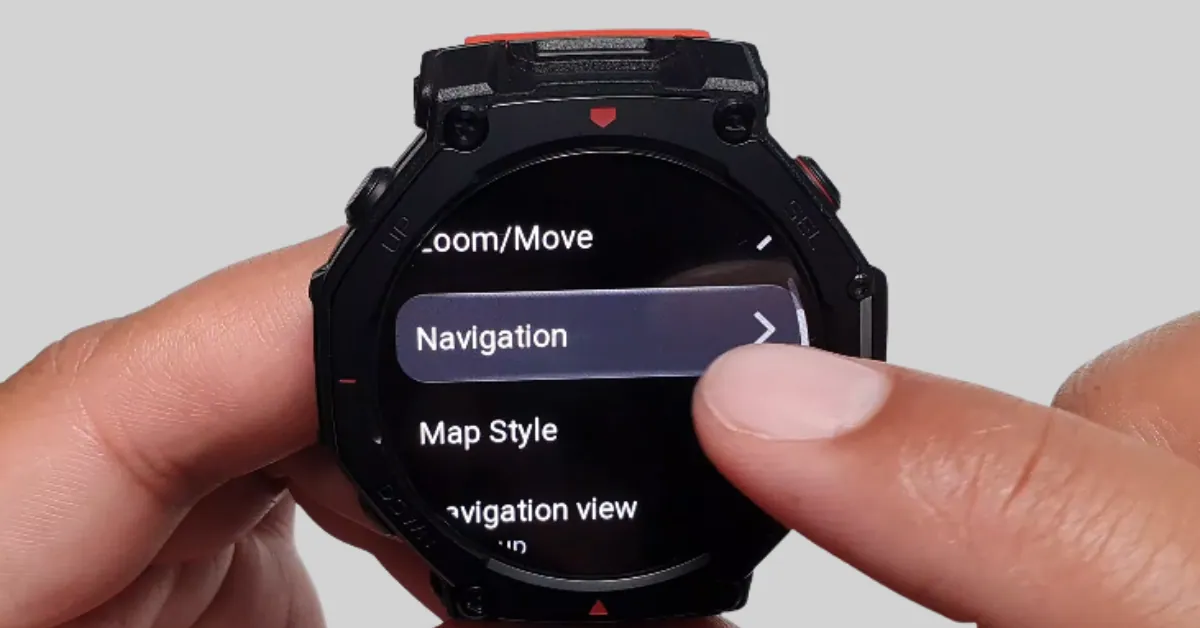
Entering the Navigation Menu
- From the map, tap the menu button.
- Go to Navigation, then select Explore Nearby.
Available Categories and Searching
You’ll see categories like:
- Convenience store
- Restrooms
- Coffee shops
- Parks
- Bar
- Restaurants
- Emergency
- Art
- Outdoor
- Nature
- Lodging
- Sports
- Transportation
- And more that may appear based on location
Example: finding a nature spot
- Select Nature.
- The watch checks your current location.
- You’ll see nearby results like parks or green spaces.
Imagine spotting a park after a long climb without reaching for your phone. That slight touch makes the outdoors more fun and keeps you in the moment.
Navigating to Any Point on the Map
Another standout feature lets you tap any point you see and go there. It’s great when a path or trail looks interesting and you want to check it out without building a complete plan.
Selecting and Viewing a Location
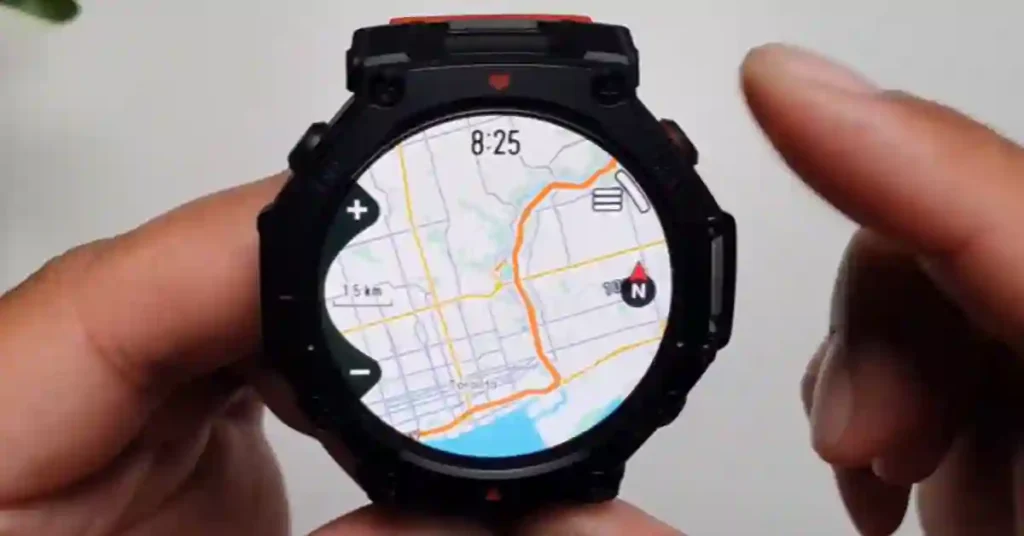
- Tap any point on the map.
- Choose to navigate to that point.
- The watch shows the distance to that spot so you can decide if it fits your time.
Choosing Your Navigation Style
You have two options:
- Turn on straight line navigation for the most direct path.
- Choose route navigation for guided paths you can follow.
You’ll also pick a workout type, such as outdoor running. This sets the context while you move, and the watch can give you better prompts during your session.
Starting and Following the Route
Once you confirm, the Amazfit T-Rex 3 begins calculating. Sometimes it finishes in a few seconds. Other times, it can glitch or take longer.
- Give it a little time to compute.
- If it stalls, try again or step into a more precise spot for a better signal.
- When it works, you get turn-by-turn guidance on the watch display.
This flow keeps you moving without breaking rhythm. It shines when a coffee shop is two turns away, or a new trail looks promising, and you want a quick out-and-back.
Creating Custom Roundtrip Routes
Planning a loop is fun and straightforward. The T-Rex 3 Pro can generate a round trip that starts and ends where you are. Cyclists, this will save you time when you want a specific distance on fresh streets.
Setting Up Your Activity and Direction
- From the navigation menu, select Create a round trip.
- Choose your activity, such as outdoor cycling.
- Pick a direction to head first: east, west, south, or north.
Defining Distance and Generating the Route
- Set your distance, for example, 15 kilometers.
- Tap to calculate. The watch builds a loop that brings you back to your starting point.
- Start the activity once the route appears.
- If it takes too long, reduce the distance and try again for a faster result.
You’ll see the shape fill in on the display. It feels like watching a tiny planner build your ride.
If the local streets are complex, smaller loops tend to develop faster and can be more precise.
Tips for Reliable Performance
A few practical habits make the Amazfit experience smoother.
- Update your latest firmware before long outings.
- Give the GPS a moment to settle at the start for better accuracy.
- Keep brightness set to a level you can read in sunlight without draining the battery.
- If routing fails, shift a few steps into a more precise spot and retry.
- When testing new functionality, practice near home before a big hike.
If you’re setting up the watch for the first time, also check out:- Amazfit T-Rex 3 Pro Firmware Update — What’s New and Why It Matters
What You’ll See On-Screen
The interface keeps things clean. You’ll get distance to your next cue, the current heading, and simple prompts during outdoor sports. If you pick route guidance, expect turn-by-turn directions. Straight-line Navigation shows the beeline to your target.
The watch uses Global Positioning System signals to anchor your position. If you move under heavy cover, give it a moment to catch up. Many Amazfit devices support dual-band for better signal in harsh conditions, and the T-Rex line is built for rugged use.
Comparing Map Types
Different map types can make a difference based on the activity.
- Base map: good for city runs and rides, quick to read.
- Contour map: better sense of elevation and terrain.
- Ski map or ski maps: useful at resorts during winter days.
Pick what matches your plan. If you stay on roads, base maps are enough. For a trail, the contour option adds context that helps you pace climbs and plan your recovery points.
A Note on Files, Imports, and Formats
This guide focuses on what you can do right on the watch. Many runners and hikers also work with GPX data in the GPS Exchange Format or Keyhole Markup Language.
If you manage a GPX file library, keep your GPX route files organized by region and date. Some users prepare routes on tools like OsmAnd (OpenStreetMap Automated Navigation Directions) and then import them, often managed via the Zepp app.
Routes, files, and third-party tools can change based on update cycles. Always test any import process locally before a big day out.
While this post doesn’t walk through import steps, this on-watch function set already covers a lot of everyday outdoor sports use.
If you’re new to GPX imports or want to plan custom routes, you may also like:- How to Add GPX Files on Amazfit T-Rex 3 Pro (Step-by-Step Guide)
Additional Resources and Tips
- How to Add Offline Music to Amazfit T-Rex 3 Pro (Complete MP3 Upload Guide)
- Amazfit T-Rex 3 Pro vs Balance 2: What’s the Real Difference in 2025?
- Amazfit T-Rex 3 vs T-Rex 3 Pro: Full 2025 Review of GPS, Battery & Fitness Features
- Amazfit T-Rex 3: How to Use VO₂ Max to Level Up Your Fitness
- How I Use Komoot and My T-Rex 3 Watch for Hiking and Biking
- 7 Best Amazfit Watches 2025: Buyer’s Guide & Reviews
Frequently Noted Questions
Does the T-Rex 3 Pro navigation work without my phone?
Yes. Once you have downloaded maps via the Zepp app and the watch has established a GPS lock, all core navigation features (offline maps, POI search, and following routes) work completely offline without a Bluetooth connection to your phone.
How long does the GPS battery last in the T-Rex 3 Pro?
The watch supports multiple modes. In Accurate GPS Mode, the battery life is typically up to 38 hours, which is enough for long treks or races. You can extend this significantly using the GPS Long Battery Life Mode, often reaching 85 hours or more.
What if the route calculation stalls or hangs?
Try stepping out into a spot with a clearer view of the sky, as dense cover can interfere. If the issue persists, reduce the distance or complexity of your round trip and try again, ensuring your watch has the latest firmware update.
Can I save my current location while navigating?
Yes. During a supported workout (like hiking), you can access the Navigation menu to save your current coordinates. This is useful for marking checkpoints, emergency rendezvous points, or your exact starting point.
Why is the map detail different sometimes?
Map detail depends on the type you downloaded: Base maps are best for streets and cities. Contour maps provide elevation and terrain context, which is essential for hiking or trail running. Ski maps are for resorts. Ensure you download the map type that matches your activity.
Can I get turn-by-turn directions?
Yes, provided you select the Route Navigation style (not Straight Line Navigation) when starting an activity or following a route. The watch uses the loaded map data to provide cues.
Conclusion
The Amazfit approach to on-wrist maps makes daily training and weekend exploring easier. With preloaded areas, quick searches, and roundtrip building, your smartwatch becomes a small guide on your wrist. Set up your maps, try a short route, and see how this fits your personal fitness goals.
For many, the right on-watch technology reduces friction and keeps focus on moving well. If you want a rugged helper for outdoor adventures, the T-rex 3 Pro has the feature set to back you up.
Bold takeaway: keep maps ready, keep your update current, and enjoy the path ahead with straightforward, on-wrist Navigation.
If your watch display is currently rendering gray grids or a completely blank map screen while trying to utilize the navigation track, it means your local tile storage is empty. See our step-by-step instructions on How to Download and Use Offline Topographic Maps on Amazfit T-Rex 3 to download files directly over Wi-Fi.
