


Want to run, hike, or lift without your phone? Here’s precisely how to add offline music to Amazfit T-Rex 3 Pro so you can play your favorite tracks directly from your wrist.
This guide shows the whole process in plain steps, from preparing your music to transferring it with the Zepp App, plus tips for pairing Bluetooth Headphones and fixing common upload issues.
Storage and Features of the Amazfit T-Rex 3 Pro
The Amazfit T-Rex 3 Pro gives you 32GB internal storage, which is plenty of space for watch faces, apps, offline maps, and a solid music library.
Having that much room means you can keep a big chunk of your favorite playlists on the watch, then leave your phone behind.
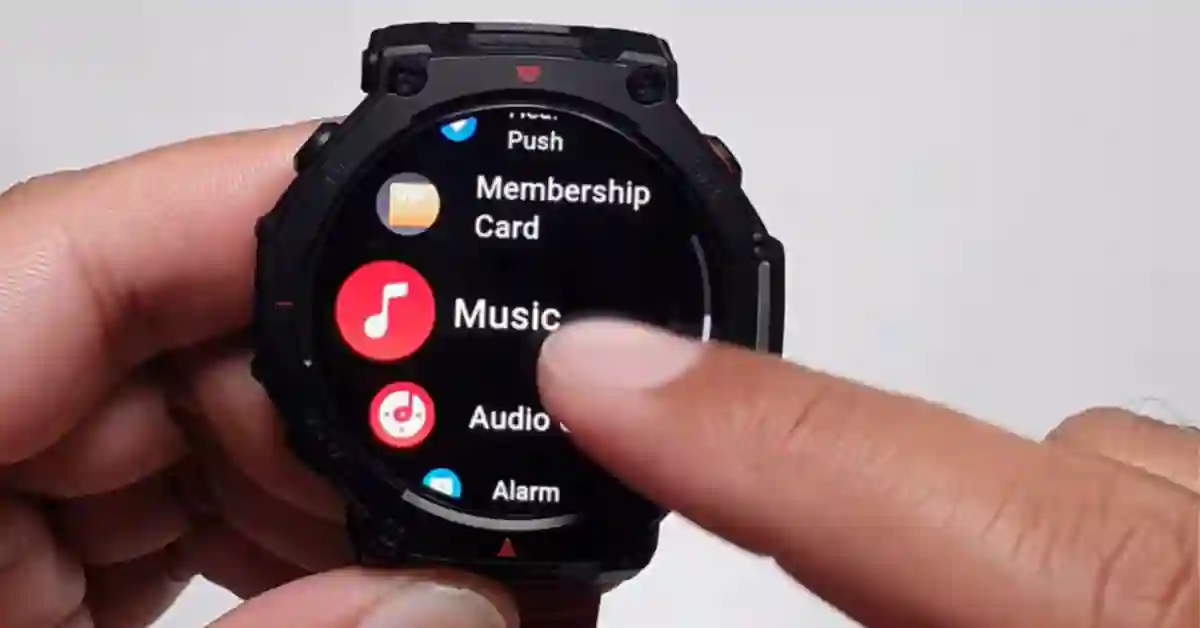
A built-in music app lets you browse your playlists, start playback, and change tracks and volume right on the watch. It is simple, quick, and built for everyday workouts and long trips.
Suggestion: add a screenshot of the watch’s Music app Home screen here, showing the controls and the All Music list.
Thinking of picking one up or checking current pricing? See the Amazfit T-Rex 3 Pro on Amazon.
Why Use Local Storage? The Offline Playback Advantage
Offline Playback on the T-Rex 3 Pro means your music lives on the watch, not your phone. That gives you a few big wins:
- No phone needed, perfect for runs or gym sessions.
- Fewer distractions, since you are not pulling out your phone to switch tracks.
- Better battery planning, because the watch handles playback locally.
- Reliable playback even when your phone has a poor signal or is left at home.
If freedom from your phone matters to you, Local Storage is the simplest way to get there.
Navigating the Music App on Your Watch
Open the Music app on the T-Rex 3 Pro by going to the Apps list. You will see the core controls right up front:
- Skip forward button
- Go back button
- Volume control slider
To see your songs, just swipe up from the player to open your playlist view, then tap All Music to see everything you have transferred.
Tap any track to start playback, then use the on-screen controls to pause, skip, or adjust the volume.
Step 1: Prepare Your Music (The MP3 File Format Requirement)
For a smooth upload, gather your music in the MP3 file format. The watch expects standard, unprotected audio files.
If your tracks come from streaming services with DRM, they likely will not transfer or play.
A few quick tips before you start:
- Keep files in plain MP3. This is the safest choice and the most reliable for transfer.
- If you have other formats, check the Supported Audio Format in your music source app and convert to MP3 if needed.
- On Android, your music is often in a Music or Downloads folder. On iOS, you can use files saved in the Files app or your cloud storage, then select them in the Zepp App when prompted.
- Keep track names tidy to make Playlist browsing easier on the watch.
If you need to move iTunes or Apple Music tracks, you must have them as standard MP3 files. You cannot directly upload protected songs.
Many people search for how to convert Apple Music to MP3 for this reason. Use legal methods and only convert music you own.
Step 2: Transfer Music via the Zepp App (A Step-by-Step Guide)
This section is your Amazfit T-Rex 3 Pro music transfer guide. Everything happens in the Zepp App and your phone’s File Manager.
You can transfer music to T-Rex 3 Pro without a computer, which makes it fast and easy.
Locating the Music Settings in the Zepp App
- Open Zepp App
- Go to Device
- Scroll to the App section, then tap the Music app
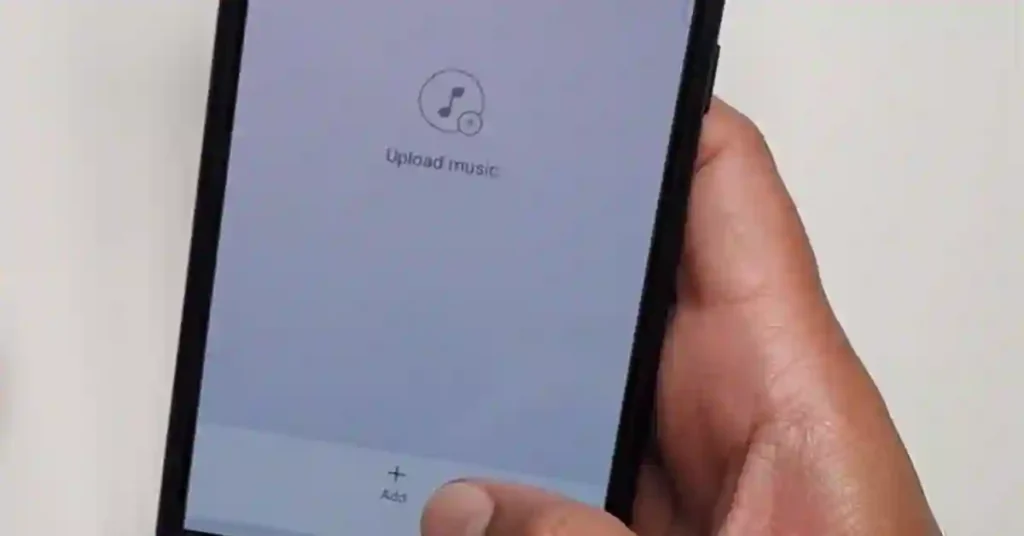
In the Music app settings, tap the Add button. Your phone will open its File Manager so you can pick songs to upload.
- Select your MP3 files, then confirm.
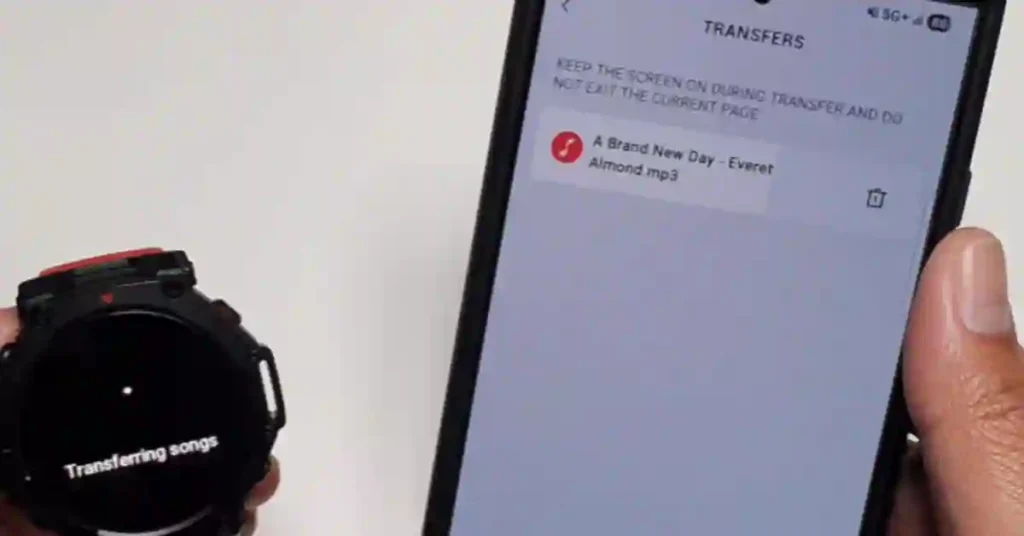
- You will see the upload begin, often shown as a progress indicator.
- Please wait until you see a status like transfer has started, then let it finish. Keep the app open until it is done.
Example: Choose a single MP3 to test. Once the upload completes, it will appear on the watch under Playlist, then All Music.
Verifying the Transfer on the Watch
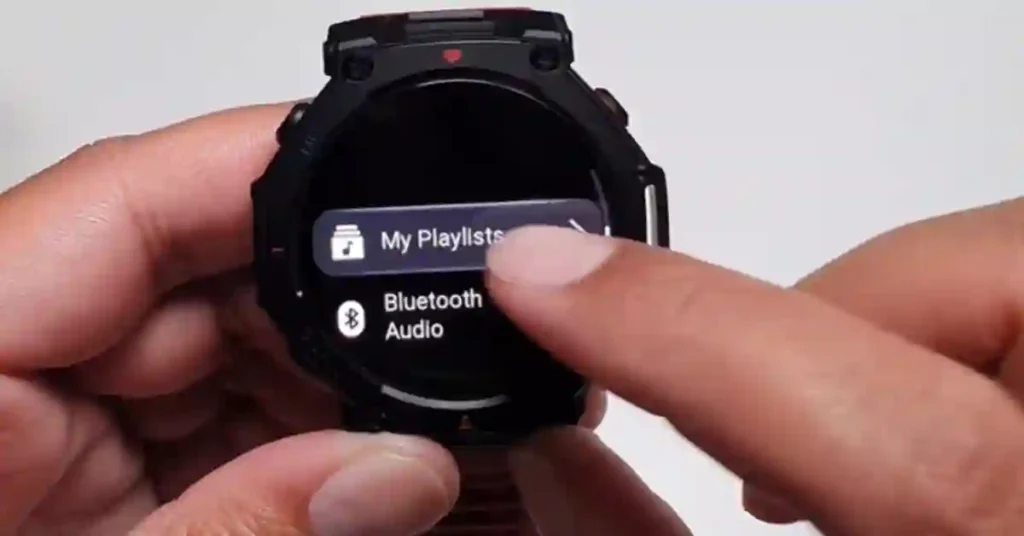
Head back to your watch to confirm everything worked:
- Check the Playlist for the song
- Tap to play and test controls
If the track appears and plays, your setup is good. You can repeat the process to add more songs and build out your library.
Step 3: Pairing Bluetooth Headphones and Starting Playback
To listen wirelessly, pair your Bluetooth Headphones from the watch’s Music app. From the main player screen, swipe up to open the Bluetooth Audio section.
Follow these steps:
- Swipe up to Bluetooth Audio
- Select and connect your device, for example, a pair like “Birds 3”
- Play music and confirm audio is routed to your headphones
If auto-reconnect is off on your headphones, you may need to connect them manually each time. Once connected, your watch sends audio from its local storage to your earbuds with no phone required.
Managing and Enhancing Your Music on the Watch
You can manage songs right from the T-Rex 3 Pro with a quick long-press on any track in your Playlist.
This is handy when you want to tidy things up or create fast access to favorites.
- Delete: Tap the delete button to remove unwanted tracks
- Favorite: Mark songs for quick access
- Add to workouts: Link tracks to exercise modes so your favorite Playlist is ready when the workout starts
Why this matters: keeping your library clean on the watch makes Offline Playback easier to use day to day: no phone dependency, simpler control, and faster access to the music that keeps you moving.
Troubleshooting Slow Transfer Speed and Failed Uploads
Even with a simple upload flow, issues can pop up. Use these tips when you see a T-Rex 3 Pro music upload failed message or if the process feels slow.
- Confirm MP3 format: Non-MP3 or protected files can fail without clear error messages. If in doubt, convert to MP3.
- Keep the Zepp App in the foreground: Switching away can pause or interrupt transfers on some phones.
- Stay close to the watch: Physical distance can affect reliability during sync.
- Check permissions: Make sure the Zepp App has file access on your phone so it can reach your File Manager and your music folders.
- Restart devices: A quick reboot of both the watch and phone clears many hiccups.
- Try smaller batches: Upload a single song to confirm everything works, then add more.
- Watch battery: A Low battery can stop or delay transfers. Charge the watch first.
- Storage space: With Smartwatch Storage at 32GB, you have plenty of room, but very large libraries can still hit limits. There is no fixed maximum number of songs; it depends on file size. Keep an eye on free space if uploads stall near the end.
- Check transfer speed: If transfers are slow, reduce phone usage during upload, keep the Zepp App open, and avoid heavy network use on your phone in the background.
If you still have problems, remove the songs that failed, re-add them as MP3 files, and try again from the Zepp App Music tab. This solves most edge cases quickly.
Pro Tips for Better Playlists on the T-Rex 3 Pro
A little planning makes a big difference. Try these ideas for a smoother experience:
- Create short workout sets: Build 30 to 60-minute sets for runs or gym days so you can start and finish without skipping around.
- Use Favorites as your quick start: Mark your best tracks for fast access mid-workout.
- Name files clearly: Clean track names help a lot when browsing on the watch’s smaller display.
- Test volume and controls: Before you head out, confirm volume limits and skip behavior with your Bluetooth Headphones.
- Know your sources: The watch plays standard audio files from Local Storage, so stick to unprotected MP3s for reliable workouts.
FAQ: Short Answers to Common Questions
Does the T-Rex 3 Pro Require a Computer to Upload Songs?
No. You can upload straight from your phone with the Zepp App. This is why many users search for ways to transfer music to T-Rex 3 Pro without a computer, because it is the easiest path.
What Formats Work Best?
Use the MP3 file format for the best results. Other types may not upload or play as expected.
Can I Build Playlists?
You can manage tracks, favorite songs, and add music to workouts on the watch. For most users, this covers day-to-day playlist needs.
Related Tips and Resources
Want to go deeper on the watch? These blog posts help you set up, explore features, and get more out of your gear:
- Amazfit T-Rex 3 Pro Review: A $400 Garmin Alternative with Built-in LED Flashlight
- How to Add GPX Files on Amazfit T-Rex 3 Pro (Step-by-Step Guide)
- Amazfit T-Rex 3 vs T-Rex 3 Pro: Full 2025 Review of GPS, Battery & Fitness Features
- How I Use Komoot and My T-Rex 3 Watch for Hiking and Biking
- Amazfit T-Rex 3 Pro Firmware Update — What’s New and Why it Matters
Final Thoughts
You now know how to Add Offline Music to Amazfit T Rex 3 Pro with a quick phone-to-watch workflow in the Zepp App.
Keep your files in MP3, manage tracks from the watch, and pair your favorite earbuds for wireless freedom.
If a transfer fails, try smaller batches and stick to standard formats.
Ready to build your next workout playlist and leave your phone at home? Your Offline Playback setup is only a few taps away.
