



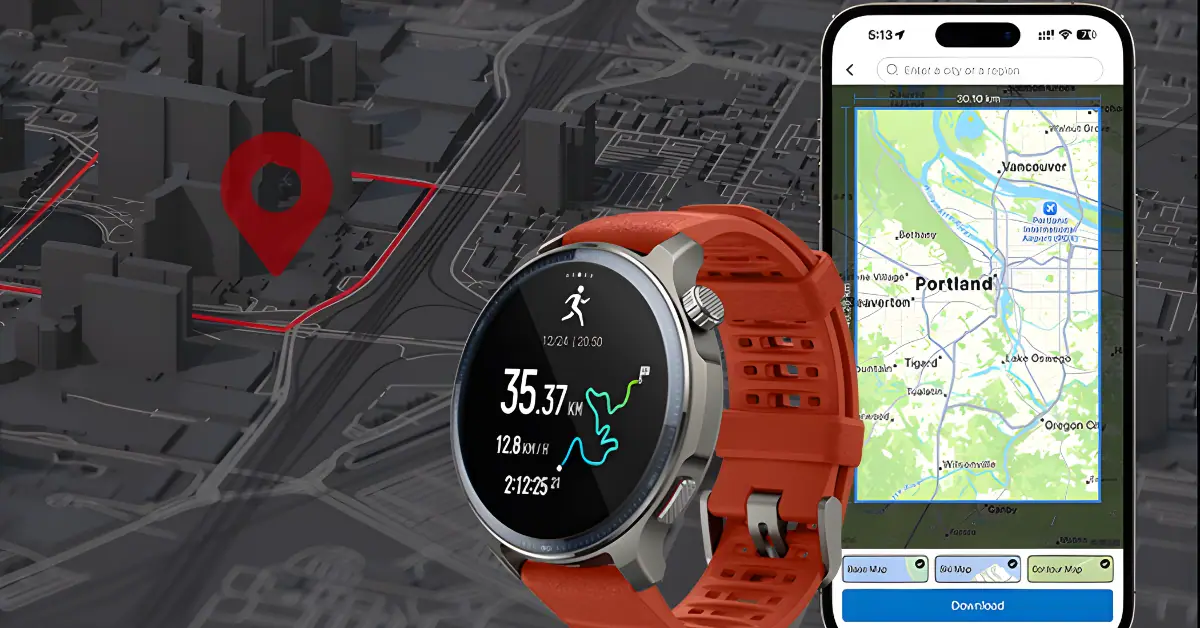
If you take your outdoor activities seriously, learning how to add GPX files to Amazfit Balance 2 (and the wider Balance series) will completely change how you use your smartwatch.
Gone are the days of stopping every ten minutes to check the map on your phone. By importing routes directly into the Zepp app and syncing them to your wrist, you can unlock real-time navigation, slope data, and elevation profiles right on your watch face.
In this step-by-step tutorial, we will cover:
- How to create a GPX file from your past workouts.
- How to import external GPX files (from AllTrails, Strava, etc.).
- How to sync the route to your Amazfit Balance 2 and start navigating.
Why Use GPX Routes on Your Amazfit Watch?
Before we dive into the steps, it is important to understand why this feature is a game-changer for hikers and runners. The Amazfit Balance 2 isn’t just a fitness tracker; it is a navigation tool.
By loading a GPX (GPS Exchange Format) file, you gain access to:
- Real-Time Route Line: A visual map on your wrist showing exactly where to go.
- Off-Route Alerts: Vibrations that warn you if you stray from the path.
- Elevation Profiles: See upcoming hills and slope gradients before you hit them.
- Battery Savings: Navigating via the watch uses significantly less power than keeping your phone screen on.
Method 1: Turn Past Workouts into Reusable Routes
Best for: Repeating a favorite hiking loop or trying to beat your previous time on a specific run.
If you have already recorded a great trail run or hike on your Amazfit device (like the T-Rex or Balance), you can export that data and turn it into a navigation route.
Step 1: Locate the Workout in Zepp
- Open the Zepp App on your phone.
- Tap on Workouts (or go to the Homepage and find “Workout History”).
- Scroll through your history and select a workout that has GPS data.
- Note: Indoor treadmill runs or gym sessions cannot be converted to GPX files because they lack map data.
Step 2: Export the Data
- On the workout detail screen, look for the Menu icon (usually three dots in the top corner).
- Select Export Track or Export Data.
- Choose GPX from the format list (Zepp may also offer TCX or FIT, but GPX is the industry standard for navigation).
- Save the file to your phone’s Files (iOS) or Downloads folder (Android).
Method 2: Import GPX Files from External Sources (AllTrails, Strava, Komoot)
Best for: Exploring new territories, vacation hikes, or following race courses.
Most users want to download a route from the web and load it onto their watch. Here is how to do it.
- Download the File: Go to a site like AllTrails, Komoot, or a race website and download the “GPX Track” to your smartphone.
- Open the File: Go to your phone’s File Manager or Downloads folder.
- Share to Zepp:
- On iPhone: Tap the GPX file → tap Share → choose Zepp from the share options.
- On Android: Tap the GPX file → select Open With → choose Zepp from the app list.
Step 3: Save and Sync to Amazfit Balance 2
Whether you exported your own history (Method 1) or downloaded a file from the web (Method 2), once you open the file in Zepp, the process is the same.
- Preview the Route: Zepp will open a “Plan Route” screen showing the map, total distance, and elevation gain/loss.
- Save the Route: Tap the Save button in the top corner. The route is now stored in your Zepp account.
- Send to Device:
- After saving, a prompt will appear asking to Send to Device.
- Tap it and select your Amazfit Balance 2 from the list.
- Wait for the “Transfer Successful” notification.
Pro Tip: To manage or delete old routes, open the Zepp app → go to Profile → select Amazfit Balance 2 → open App Settings → tap Route. Here you can remove older maps to free up space on your watch.
How to Load the Route on Your Watch
Now that the data is on your wrist, here is how to start navigation during your next adventure.
- Head Outdoors: Go to your starting point.
- Open Sports Mode: Press the button on your Amazfit Balance 2 and select your activity (e.g., Outdoor Hiking, Trail Running, or Outdoor Cycle).
- Open Navigation Settings:
- Before you press “GO,” scroll down to Settings.
- Select Navigation.
- Tap My Route.
- Select Your Course: You will see the list of GPX files you imported. Tap the one you want to follow.
- Start the Workout: You will see a preview of the track. Press Use Route, wait for the GPS signal to lock green, and hit GO.
Viewing Data While Moving
While you are moving, you can scroll through your data pages to find the Navigation Screen.
- The Line: Follow the line on the screen. Your position is marked by an arrow.
- Scale: Use the watch buttons or touchscreen to zoom in and out of the map.
- Slope Data: Swiping to the elevation page will show you where you are on the “hill” profile, helping you pace yourself for steep climbs.
Troubleshooting Common Issues
Q: The Zepp app doesn’t appear when I try to open the GPX file.
This is common on Android. Instead of tapping the file directly, open the Zepp App first, go to Profile → My Route, and look for an Import option, or try using a different File Manager app to “Share” the file to Zepp.
Q: My route doesn’t show up on the watch.
Ensure the Bluetooth sync actually finished. If the file is large (a 50-mile ultra-marathon route), it may take a minute to transfer. Check the “Transfer” page in the Zepp app to ensure it hit 100%.
Q: Can I use this for city walking?
Yes! While designed for trails, importing a GPX of a city walking tour is a great way to explore a new capital without looking like a tourist staring at a phone.
Conclusion
Adding GPX files to your Amazfit Balance 2 transforms it from a passive tracker into an active guide. Whether you are revisiting a favorite local path or tackling a bucket-list hike in a national park, the offline navigation features ensure you stay on track and safe.
Ready to try it out? Open your Zepp app history right now, find your favorite hike, and practice exporting it so you are ready for your next adventure.
If you found this guide helpful, check out our Amazfit Balance 2 Review to see what else this powerhouse device can do.
You may Also Like:-
- Amazfit Balance 2 Update: TrainingPeaks & Ski Machine Mode Added.
- Amazfit Active 2 vs Balance 2 (2025): Full Comparison of Features, Design & Battery Life.
- Amazfit T-Rex 3 Pro vs Balance 2: What’s the Real Difference in 2025?.
- Amazfit Balance 2 Blood Pressure Feature: Where It’s Available and How It Works
